I switched coding assistants three times in six months. The first time, I moved from Copilot to Cursor because I got tired of making the same multi-file refactor in four separate steps. The second time, I added Gemini Code Assist to the mix after spending a Friday afternoon trying to understand a 60,000-line legacy codebase I'd inherited. The third time, I went back to Cursor full-time for daily work — but kept Gemini for exploration.
That churn taught me something: these three tools are not interchangeable, and choosing the wrong one for your workflow wastes hours per week. In 2024, 44% of developers used AI coding assistants. By 2026, that's 74% according to JetBrains' annual survey — and GitHub Copilot still holds 29% market share, but Cursor grew faster than any developer tool in the history of the survey. Something changed.
This post is my honest breakdown: what each tool does well, where each one fails, and a decision framework you can actually use rather than "it depends."
Why 2026 Is Different
When Copilot launched in 2021, the magic trick was that an LLM could generate plausible code at all. Developers were astonished. By 2023, the bar had shifted: the magic trick was context. Can it understand my codebase, not just generic Python patterns?
Now, in 2026, the war is being fought on three fronts simultaneously:
Context window size. Gemini 2.5 Pro's one-million-token context window changed the game. An entire medium-sized codebase fits in a single context. You're not searching and indexing — you're just reading.
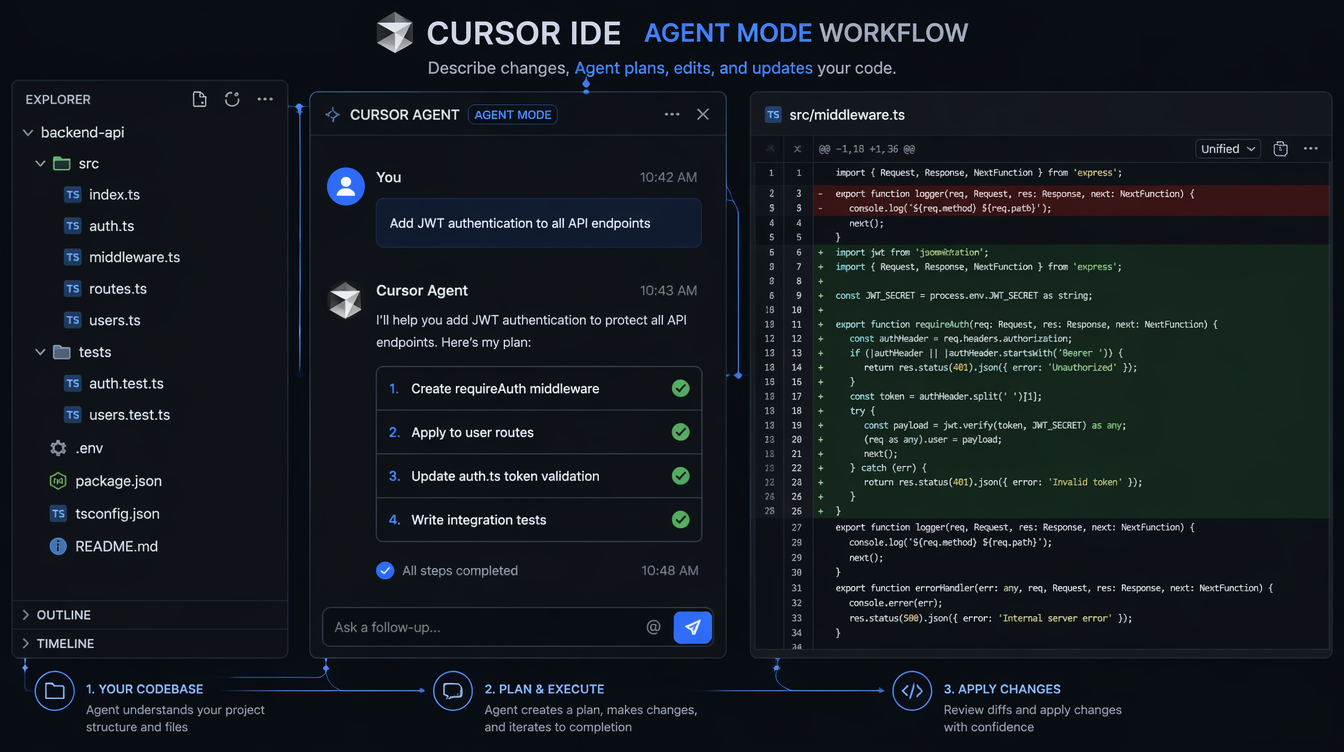
Agentic execution. Cursor's Agent mode doesn't complete lines; it executes multi-step tasks across multiple files. "Add rate limiting to all endpoints" means it reads your router, understands your middleware pattern, writes new code, and updates tests. That's a different category of tool.
Model choice. The single-model era is over. Cursor lets you pick GPT-4o, Claude Sonnet 4, Claude Opus, or Gemini 2.5 Pro. Copilot Pro added Claude Sonnet and GPT-4o. You're not locked into one provider's model anymore.
These three shifts explain why the market looks so different now. Let's go through each tool.
GitHub Copilot: Breadth and Ecosystem
GitHub Copilot is the oldest and most widely deployed AI coding assistant. That age shows in its strengths and its limitations.
What Copilot Actually Does
The core Copilot experience is inline completion. As you type, a grey suggestion appears after your cursor. Press Tab to accept, Escape to dismiss, or keep typing to replace it. This is still the primary interaction model, and it's still the most natural one: you stay in flow, the tool fills in the gaps.
The suggestions pull from what GitHub calls "neighboring tabs" context — the currently open file, plus a handful of recently edited files. It doesn't index your whole project. That scope works well for the tasks it was designed for:
- Finishing a function you've half-defined
- Writing boilerplate (test setup, config parsing, API clients)
- Completing repetitive patterns (if you've written three similar functions, it predicts the fourth)
- Multi-language work — Copilot's training corpus is enormous and its TypeScript, Python, Go, and Java quality is genuinely best-in-class
Beyond inline completions, Copilot Chat is integrated into VS Code's sidebar. You can select a block of code and ask "explain this," "refactor for readability," "write a test for this function," or "what's wrong here." It uses GPT-4 Turbo with some Sonnet access on the Pro tier, and the answers are accurate for common patterns.
The newest feature worth knowing: Copilot Workspace — a web-based environment where you can describe a feature, Copilot creates a plan showing which files it'll change, and you iterate on the plan before touching any code. It's early, but it's Copilot's answer to Cursor's multi-file editing.
Where Copilot Falls Short
Copilot's "neighboring tabs" context model is its core weakness. For tasks that require understanding your whole codebase — "rename this interface and update every caller," "add logging to every function in this service layer," "why is this test failing given what I know about how data flows through this system" — Copilot gives you partial answers at best.
The other gap: until recently, you couldn't choose your model. Copilot Individual still defaults to GPT-4 Turbo. The Pro tier unlocks Claude Sonnet and GPT-4o, but model selection is limited. If you hit a hard reasoning problem and want to throw Claude Opus at it, Copilot can't do that.
Pricing
| Tier | Price | What You Get |
|---|---|---|
| Free | $0 | 2,000 completions/month, 50 chat messages |
| Individual | $10/mo | Unlimited completions, chat, GPT-4 Turbo |
| Pro | $19/mo | Claude Sonnet + GPT-4o access, Copilot Workspace |
| Business | $19/user/mo | Admin controls, audit logs, IP indemnification |
The free tier is real — not a trial. For students and hobbyists, 2,000 completions per month covers light use.
Copilot's Decision Flow
Cursor: Whole-Codebase Intelligence
Cursor is what Copilot would be if it were rebuilt from scratch with the assumption that you're working on real, multi-file projects. It's a VS Code fork — all your extensions, keybindings, and settings transfer — but the AI layer is completely different.
The Indexing Difference
When you open a project in Cursor, it indexes your codebase. Not just the open file, not "neighboring tabs" — the whole thing. When you ask Cursor a question, it searches that index to find relevant context, then sends a curated slice to the model. The result: Cursor can answer questions and make changes that span your entire project.
Try this: open a large project, find a class that's used in twelve different files, and ask Copilot to rename it. Copilot will rename it in the current file and maybe suggest edits in other files you have open. Ask Cursor the same thing, and Agent mode will find every usage, rename them all, and show you a diff.
That's not a marginal improvement. That's a different category of tool.
Agent Mode
Cursor's Agent mode (previously "Composer") is the real differentiator. You describe a task in natural language:
"Add JWT authentication to the
/api/usersendpoints. Create arequireAuthmiddleware, apply it to all user routes, add the token verification logic, and write integration tests."
Cursor creates a plan: here are the files I'll touch, here's what I'll do to each one. You can edit the plan before execution. Then it executes, creating new files and modifying existing ones. You get a diff view — accept changes file by file or all at once.
Real benchmark: on a task I timed manually — adding a new feature across 6 files with tests — Copilot required me to edit each file separately (8 minutes of active work). Cursor's Agent completed the same task in 2 minutes, with me reviewing and approving the diff. The quality was comparable; the time was not.
Model Choice
Cursor lets you choose the model for every task:
| Task Type | Recommended Model |
|---|---|
| Fast inline completions | GPT-4o mini |
| Code generation, refactoring | Claude Sonnet 4 or GPT-4o |
| Complex architecture / debugging | Claude Opus 4 |
| Large codebase analysis | Gemini 2.5 Pro |
This model routing is genuinely useful. You don't pay Opus-tier prices for tab completions, but you can reach for it when you're debugging a race condition at 11pm.
The Costs
Price: $20/month for Pro (500 fast requests, unlimited slow). There's a free tier with limited agent uses.
IDE lock-in: Cursor is VS Code only. JetBrains developers don't have a Cursor option. RubyMine users, Android Studio users — you're not in the target market.
Privacy: Cursor stores your codebase index on their servers. For proprietary code, this is a risk. They offer a "Privacy Mode" that disables training on your code, but it doesn't change the indexing requirement.
How Agent Mode Works Internally
Gemini Code Assist: The One-Million-Token Wildcard
Google's Gemini Code Assist entered the conversation seriously in late 2025 when Gemini 2.5 Pro shipped with a one-million-token context window. That's not a spec sheet number — it changes what's possible.
What One Million Tokens Actually Means
A typical medium-sized application codebase — 50,000 to 150,000 lines — fits inside Gemini 2.5 Pro's context window. Not indexed and searched, but loaded. The model reads the entire thing simultaneously.
This matters for a specific set of tasks that neither Copilot nor Cursor handles well:
Onboarding to unfamiliar code. Paste your entire codebase into Gemini's context and ask "explain how authentication works in this system, tracing from the login endpoint through every middleware." Gemini can answer that because it has read every relevant file without you curating what's relevant.
Cross-cutting bug analysis. "This function is returning stale data. Given everything you know about how data flows in this codebase, what could cause this?" Copilot and Cursor both require you to know which files to include. Gemini just... knows.
Refactoring planning. "I want to move from class-based components to functional components in this React codebase. Given everything you can see, what would break and in what order should I migrate?" That's the kind of architectural question a million-token context handles well.
The Completion Experience
For day-to-day inline completions, Gemini Code Assist is good — not quite Copilot's quality at the line-completion level, but close. The suggestion latency is higher than Copilot (typically 800ms vs 300ms on my machine). For autocomplete of repetitive patterns, this latency is noticeable.
The chat interface is where Gemini shines for explanation tasks. It's substantially better than Copilot at answering "how does X work in this codebase" because it has more context to work with.
The Free Pricing Reality
Gemini Code Assist is free for individual developers. Not freemium — free. No credit card required, no monthly limit.
Google's strategy here is transparent: subsidize developer adoption to compete with Microsoft's GitHub/Copilot ecosystem. The bet is that developers who use Gemini Code Assist will push for Gemini usage in their companies, pulling enterprise deals away from Azure OpenAI.
For you as a developer, this means a production-quality AI coding assistant at zero cost. There's no catch in the pricing, but there is a risk: Google's track record with developer tools is mixed. They shut down Stardust, rebranded Bard to Gemini, and killed Duet AI to replace it with Code Assist. The product is real, but betting your entire workflow on it carries Google's cancellation risk.
Gemini's Context Window Decision Tree
Side-by-Side: What Actually Matters
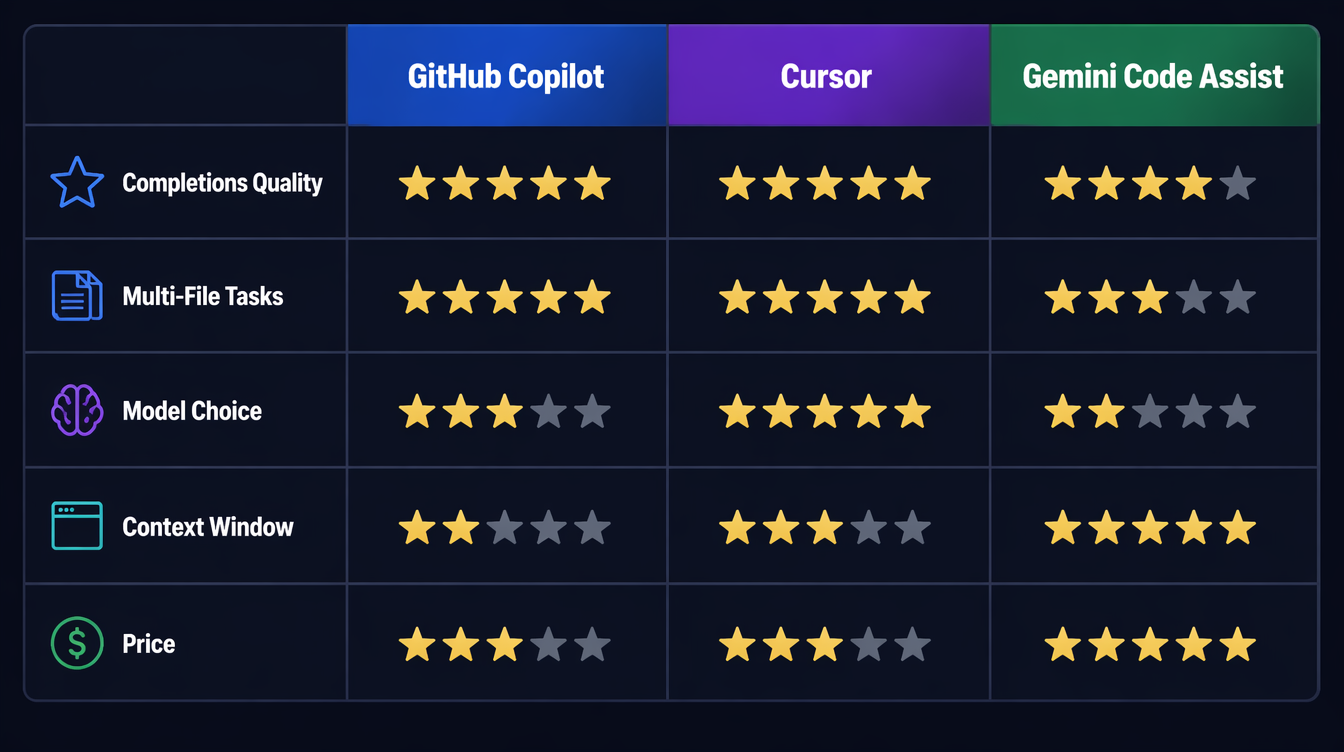
Here's the honest breakdown across the dimensions that matter for daily work:
| Dimension | Copilot | Cursor | Gemini |
|---|---|---|---|
| Inline completions | ★★★★★ | ★★★★★ | ★★★★☆ |
| Multi-file tasks | ★★☆☆☆ | ★★★★★ | ★★★☆☆ |
| Codebase exploration | ★★☆☆☆ | ★★★★☆ | ★★★★★ |
| Model choice | ★★★☆☆ | ★★★★★ | ★★☆☆☆ |
| IDE integration | ★★★★★ | ★★★★☆ | ★★★★☆ |
| Latency | ★★★★★ | ★★★★☆ | ★★★☆☆ |
| Price | ★★★☆☆ ($10-19) | ★★★☆☆ ($20) | ★★★★★ (Free) |
The Benchmark Task
I ran the same task through all three tools: "Write a Python function that batch-processes a list of items with configurable retry logic, exponential backoff, rate limiting, and structured logging."
Copilot generated a clean implementation using tenacity for retries and logging for structured output. Solid, but it used a global rate limiter that wouldn't work in concurrent contexts. I had to explicitly ask it to fix that in a follow-up.
Cursor with Claude Sonnet 4 generated the same function but noticed I had an existing RateLimiter class in my codebase (from a file I hadn't opened) and used it instead of writing a new one. It also wrote a unit test matching my test file conventions. That context-awareness saved me 10 minutes of refactoring.
Gemini generated the function with excellent retry logic using asyncio (correct, since my codebase is async throughout — something it inferred from the other files it could see). The logging format matched my existing logs exactly.
The winner depends on what mattered to you: Cursor's cross-file awareness, or Gemini's whole-codebase inference.
Production Considerations
A few things that don't show up in feature comparisons:
Data privacy varies significantly. Copilot Business and Enterprise exclude your code from training by default. Cursor Privacy Mode does the same. Gemini Code Assist's enterprise tier offers similar guarantees, but the individual tier's data handling is less clear. For proprietary code, verify the data handling terms before using any of these tools.
Latency affects flow state. In my testing on a 2024 MacBook Pro:
- Copilot inline suggestions: ~250ms average
- Cursor inline suggestions: ~300ms average
- Gemini inline suggestions: ~750ms average
That 500ms difference between Copilot/Cursor and Gemini is noticeable during fast typing. If you're a flow-state developer who types without pausing, Copilot's latency is meaningfully better.
Team adoption has network effects. If your team standardizes on Copilot, shared .github/copilot-instructions.md files let you tune behavior for your codebase. Cursor supports per-project rules via .cursorrules. These team configurations make the tools substantially more useful over time.
These tools don't replace code review. I've had all three generate code that looks correct, compiles, passes basic tests — and has subtle bugs. Cursor once generated a pagination cursor bug that only appeared with exactly 100 results (the edge case at the page boundary). The code looked right. The test covered it. The bug still shipped to staging. AI-generated code needs review. The bar doesn't lower.
The Decision Framework
If you're a student or working on side projects with budget constraints: Gemini Code Assist. It's free, genuinely capable, and the one-million-token context window makes it extraordinary for understanding unfamiliar code. Add Cursor later when you're working on larger projects and budget allows.
If you're a professional developer in a VS Code + GitHub ecosystem doing standard feature work: GitHub Copilot Pro at $19/month. The multi-model access (Sonnet + GPT-4o), GitHub PR integration, and ecosystem depth make it the lowest-friction professional option.
If you're working on large existing codebases with teams of 10+, running complex refactors, or building on a monorepo: Cursor Pro at $20/month. The Agent mode pays for itself in the first week. The full-repo context eliminates hours of manual file hunting.
If you can spend $30/month: Gemini (free) for exploration and onboarding, Cursor ($20) for implementation. These two tools are genuinely complementary — Gemini helps you understand the system, Cursor helps you change it.
If you're locked into JetBrains IDEs: GitHub Copilot is your only mainstream option right now. Cursor is VS Code-only.
What Changes in the Next 12 Months
The tools are moving fast. A few things to watch:
GitHub Copilot Workspace is expanding — if it ships as a reliable multi-file editing experience inside VS Code, it closes the gap with Cursor significantly. Microsoft has the distribution advantage; they just need the product to catch up.
Cursor's JetBrains support has been "coming soon" for six months. If it ships, a substantial chunk of the developer market opens up.
Google has been quiet about Gemini Code Assist's roadmap. The context window advantage is real, but Anthropic and OpenAI are actively scaling their context windows too. The one-million-token moat may narrow.
All three tools are moving toward agentic workflows — longer-horizon tasks, terminal access, web search integration. The line between "coding assistant" and "coding agent" is blurring. Cursor is furthest along; Copilot Workspace is catching up; Gemini is starting this journey.
Conclusion
The AI coding tools market in 2026 is not "pick one and stick with it forever." The tools are differentiated enough that the right answer depends on your workflow, your codebase size, and your budget.
For most developers: start with Gemini Code Assist (free), use it for a month to understand what AI assistance actually feels like in your workflow, then decide if you need Copilot's polish or Cursor's multi-file power.
For teams: standardize on Cursor if you're on VS Code and working on complex codebases. The investment in .cursorrules and shared team configuration pays dividends over time.
For JetBrains developers: GitHub Copilot is your answer, and it's genuinely good. Watch for Cursor to announce JetBrains support.
The companion video to this post walks through the same tools with live screen recordings — link in the header.
Sources
- JetBrains Developer Ecosystem Survey 2026 — 74% developer AI tool adoption, GitHub Copilot 29% market share
- GitHub Copilot Docs — Model selection and pricing — Copilot Individual/Pro/Business pricing tiers
- Cursor Documentation — Agent mode — Composer/Agent multi-file execution architecture
- Google — Gemini Code Assist announcement — One-million-token context, free individual tier
- Gemini 2.5 Pro technical report — 1M token context window specifications
About the Author
Toc Am
Founder of AmtocSoft. Writing practical deep-dives on AI engineering, cloud architecture, and developer tooling. Previously built backend systems at scale. Reviews every post published under this byline.
Published: 2026-04-23 · Written with AI assistance, reviewed by Toc Am.
Get These In Your Inbox
Weekly deep-dives on AI engineering, no fluff. Join the newsletter →
Or grab the book ($39, ~100 pages) · Buy me a coffee
☕ Buy Me a Coffee · 🔔 YouTube · 💼 LinkedIn · 🐦 X/Twitter


No comments:
Post a Comment