Showing posts with label Comparison. Show all posts

Monday, April 6, 2026

Fine-Tuning vs RAG: When to Use Which

Fine-Tuning vs RAG Hero

Fine-Tuning vs RAG: When to Use Which

Level: Advanced | Topic: Fine-Tuning vs RAG | Read Time: 7 min


Two techniques dominate the conversation about customizing LLMs: fine-tuning and Retrieval-Augmented Generation (RAG). Both make models more useful for specific tasks. But they solve fundamentally different problems, and using the wrong one wastes time and money.

This guide provides a clear decision framework for choosing between them.

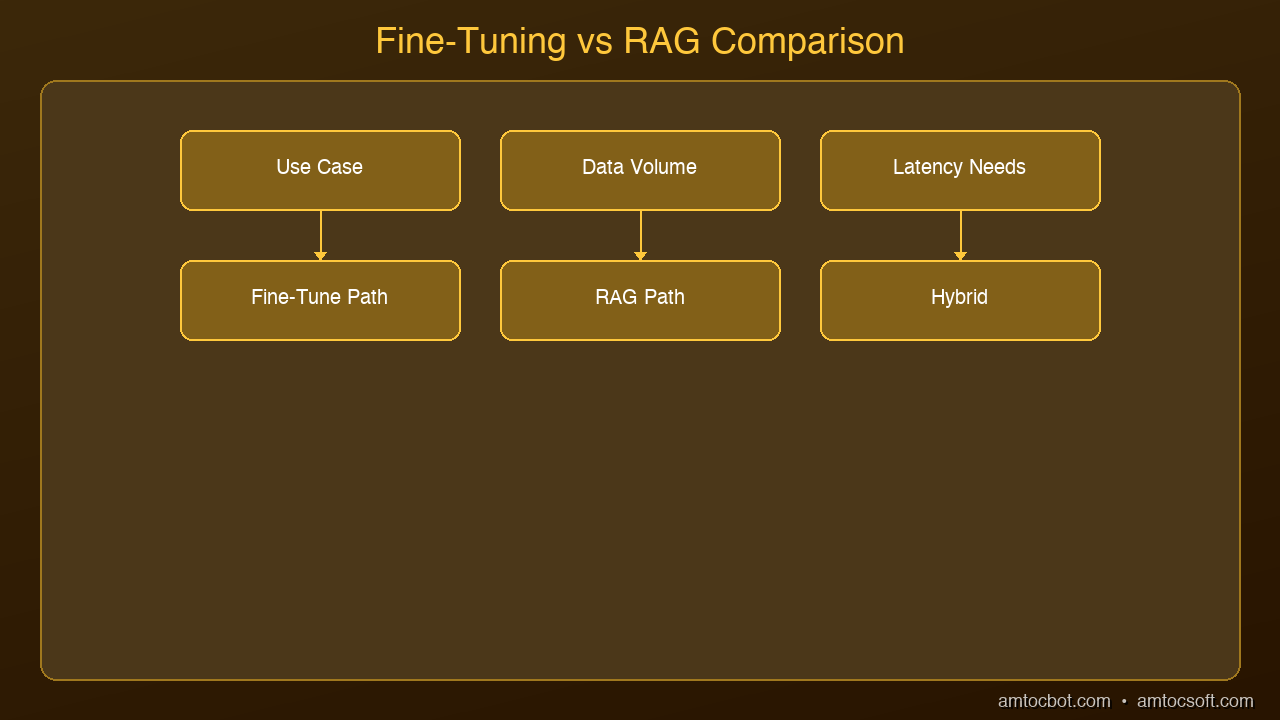
graph TB
  A[Need to Customize AI?] --> B{Is Data Static?}
  B -->|Yes| C[Fine-Tuning]
  B -->|No / Dynamic| D[RAG]
  A --> E{Need Both?}
  E -->|Yes| F[Hybrid\nFine-Tune + RAG]

What Each Technique Does

RAG adds external knowledge at inference time. Before the model generates a response, RAG searches a knowledge base, retrieves relevant documents, and includes them in the prompt. The model's weights remain unchanged.

Fine-tuning changes the model's behavior by updating its weights with new training data. The model permanently learns new patterns, styles, or domain knowledge.

The distinction matters: RAG teaches the model what to know. Fine-tuning teaches the model how to behave.


When to Use RAG
Architecture Diagram

RAG is the right choice when:

  • Knowledge changes frequently: Product catalogs, documentation, news, pricing — anything that updates regularly
  • You need citations: RAG naturally provides source documents for every answer
  • Your knowledge base is large: RAG can search millions of documents without increasing model size
  • Accuracy is critical: Grounding responses in retrieved documents reduces hallucinations
  • You need to get started quickly: RAG requires no training, just a vector database and embeddings

Common RAG use cases: customer support chatbots, document Q&A, knowledge base search, legal research, internal wikis.


When to Use Fine-Tuning

Fine-tuning is the right choice when:

  • You need a specific output format: Always return JSON, always use a template, always follow a rubric
  • You need a specific tone or style: Brand voice, medical writing style, legal prose
  • You need improved reasoning in a domain: Medical diagnosis, code review, financial analysis
  • Latency matters: Fine-tuned models respond in one pass; RAG adds retrieval latency
  • You want a smaller, faster model: Fine-tune a 3B model to outperform a general 70B on your task

Common fine-tuning use cases: code generation for specific frameworks, clinical note summarization, sentiment analysis in a specific domain, structured data extraction.


The Decision Matrix

Criterion Choose RAG Choose Fine-Tuning
Knowledge freshness Dynamic, changes often Static domain knowledge
Training data available Not enough examples 1,000+ quality examples
Output format needs Standard text Specific structure required
Deployment speed Need it now Can invest training time
Cost sensitivity Low ongoing cost Upfront training cost
Model behavior change No Yes

The Best Answer: Use Both

The most effective production systems combine both techniques:

  1. Fine-tune the base model on your domain to improve its reasoning and output format
  2. Add RAG to give it access to current knowledge and specific documents
  3. Engineer prompts to guide the fine-tuned model's behavior at inference time

Example: A medical AI that is fine-tuned on clinical notes (behavior), uses RAG to retrieve patient records (knowledge), and has a system prompt defining the output template (format).


Cost Comparison

Approach Upfront Cost Ongoing Cost Maintenance
RAG only Vector DB setup Embedding + retrieval per query Update documents
Fine-tuning only GPU training time Inference compute Retrain periodically
Both Higher initial Moderate Both maintenance streams

For most teams, starting with RAG and adding fine-tuning when needed is the pragmatic path.


Sources & References:
1. Lewis et al. — "Retrieval-Augmented Generation" (2020) — https://arxiv.org/abs/2005.11401
2. Hu et al. — "LoRA: Low-Rank Adaptation" (2021) — https://arxiv.org/abs/2106.09685
3. LangChain — "RAG Documentation" — https://python.langchain.com/docs/concepts/rag/


Published by AmtocSoft | amtocsoft.blogspot.com
Level: Advanced | Topic: Fine-Tuning vs RAG

About the Author

Toc Am

Founder of AmtocSoft. Writing practical deep-dives on AI engineering, cloud architecture, and developer tooling. Previously built backend systems at scale. Reviews every post published under this byline.

LinkedIn X / Twitter

Published: 2026-04-11 · Written with AI assistance, reviewed by Toc Am.

Get These In Your Inbox

Weekly deep-dives on AI engineering, no fluff. Join the newsletter →

Subscribe (free)

Or grab the book ($39, ~100 pages) · Buy me a coffee

☕ Buy Me a Coffee · 🔔 YouTube · 💼 LinkedIn · 🐦 X/Twitter

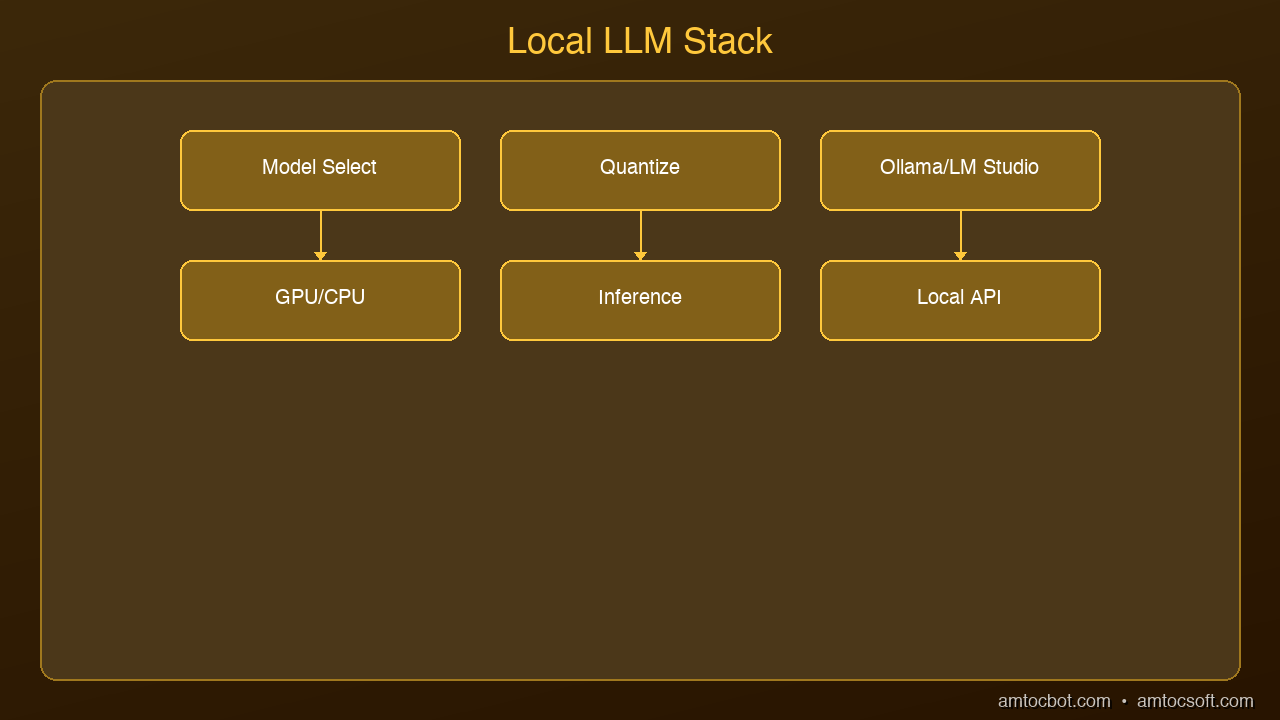
Running LLMs Locally: Ollama vs LM Studio vs llama.cpp

Running LLMs Locally: Ollama vs LM Studio vs llama.cpp Hero

Running LLMs Locally: Ollama vs LM Studio vs llama.cpp

Level: Intermediate | Topic: Local AI Tools | Read Time: 7 min


You have decided to run AI models locally. Good choice. But which tool should you use? The three dominant options are Ollama, LM Studio, and llama.cpp. Each takes a fundamentally different approach to the same problem.

This guide compares all three so you can pick the right tool for your workflow.

graph LR
  A[Model Download\nHuggingFace/Ollama] --> B[Quantization\nGGUF]
  B --> C[Runtime\nllama.cpp/Ollama]
  C --> D[API Server]
  D --> E[Your Application]

Ollama: The Developer's Choice

Ollama is a command-line tool that manages models like a package manager. Install it, run ollama run llama3.2, and you are chatting with a model in seconds.

Strengths:
- Simplest setup of the three: one command to install, one command to run
- Built-in REST API at localhost:11434 — compatible with the OpenAI SDK
- Model library with hundreds of pre-configured models
- Automatic GPU detection and optimization
- Background service that runs models on demand

Best for: Developers building applications, scripting, CI/CD pipelines, headless servers

Limitations: No built-in GUI. Terminal only (though many third-party UIs exist).


LM Studio: The GUI Approach

Architecture Diagram

LM Studio is a desktop application that provides a polished chat interface for local models. It handles downloading, converting, and running models through a visual interface.

Strengths:
- Beautiful desktop UI with chat history
- Built-in model discovery and download from Hugging Face
- Supports GGUF model format with quantization options
- Local server mode for API access
- No command line required

Best for: Non-developers, researchers exploring models, anyone who prefers a visual interface

Limitations: Larger download size, desktop-only, less scriptable than Ollama.


llama.cpp: Maximum Performance

llama.cpp is the C/C++ inference engine that powers both Ollama and LM Studio under the hood. Using it directly gives you the most control and the best performance.

Strengths:
- Fastest inference speeds — optimized C/C++ with SIMD, Metal, CUDA support
- Maximum control over quantization, context length, batch size
- Smallest memory footprint
- Server mode with OpenAI-compatible API
- Active development with new optimizations weekly

Best for: Power users, production deployments, custom model formats, performance-critical applications

Limitations: Requires compiling from source (or downloading pre-built binaries). Steeper learning curve. Manual model management.


Head-to-Head Comparison

Feature Ollama LM Studio llama.cpp
Setup time 30 seconds 2 minutes 5-10 minutes
GUI No (CLI) Yes No (CLI)
API server Built-in Optional Built-in
OpenAI compatible Yes Yes Yes
Model management Automatic Visual browser Manual
Performance Good Good Best
Scriptable Excellent Limited Excellent
GPU support Auto-detect Auto-detect Manual config
Best for Developers Exploration Production

Which Should You Choose?

Choose Ollama if you are a developer who wants the fastest path from zero to a working local AI with API access. It is the default recommendation for most use cases.

Choose LM Studio if you prefer a visual interface, want to explore different models interactively, or are not comfortable with the command line.

Choose llama.cpp if you need maximum performance, are deploying to production, or need fine-grained control over inference parameters.

The good news: You can use all three. They all support the same GGUF model format, and skills transfer between them. Start with Ollama, graduate to llama.cpp when you need more control.


Sources & References:
1. Ollama — "Official Documentation" — https://ollama.com/
2. LM Studio — "Run Local LLMs" — https://lmstudio.ai/
3. llama.cpp — "GitHub Repository" — https://github.com/ggerganov/llama.cpp


Published by AmtocSoft | amtocsoft.blogspot.com
Level: Intermediate | Topic: Local AI Tools

About the Author

Toc Am

Founder of AmtocSoft. Writing practical deep-dives on AI engineering, cloud architecture, and developer tooling. Previously built backend systems at scale. Reviews every post published under this byline.

LinkedIn X / Twitter

Published: 2026-04-08 · Written with AI assistance, reviewed by Toc Am.

Get These In Your Inbox

Weekly deep-dives on AI engineering, no fluff. Join the newsletter →

Subscribe (free)

Or grab the book ($39, ~100 pages) · Buy me a coffee

☕ Buy Me a Coffee · 🔔 YouTube · 💼 LinkedIn · 🐦 X/Twitter
Thursday, April 2, 2026

AI Coding Tools in 2026: Cursor, Copilot, Claude Code Compared

If you write code in 2026 and you're not using an AI coding assistant, you're leaving hours on the table every week. The question isn't whether to use one — it's which one fits how you work.

The three tools that dominate right now are GitHub Copilot, Cursor, and Claude Code. They look similar on the surface — all three suggest code, answer questions, and help you build faster. But underneath, they have fundamentally different philosophies about what AI-assisted coding should be.

GitHub Copilot: The Autocomplete Pioneer

GitHub Copilot was the first mainstream AI coding assistant, and it still has the largest user base. It lives inside your existing editor as a plugin that suggests code as you type.

What It Does Well

  • Inline completions: Start typing and Copilot finishes your thought, often with entire functions
  • Chat sidebar: Ask questions about your code without leaving your editor
  • Copilot Workspace: Plan and implement changes across multiple files from a GitHub issue
  • Massive training data: Built on OpenAI models trained on billions of lines of code

Where It Falls Short

  • Suggestions are sometimes generic or outdated
  • Limited awareness of your full project context in the free tier
  • Multi-file edits still require manual coordination

Best For: Developers who want AI assistance without changing their editor setup. Starting at $10/month.

Cursor: The AI-Native Editor

Cursor took a different approach: instead of adding AI to an existing editor, they built an editor around AI. It's a fork of VS Code, so it feels familiar, but AI is woven into every interaction.

What It Does Well

  • Codebase awareness: Indexes your entire project and uses it as context
  • Cmd+K inline editing: Select code, describe what you want changed, Cursor rewrites it
  • Multi-file edits: Describe a change and Cursor modifies multiple files simultaneously
  • Composer mode: Describe a feature and Cursor generates the implementation
  • Tab completion: Predicts your next edit based on recent changes

Where It Falls Short

  • You have to switch editors (it's its own app)
  • Can be aggressive with suggestions in Composer mode

Best For: Developers who want the deepest AI integration and don't mind a dedicated editor. Starting at $20/month.

Claude Code: The Terminal Agent

Claude Code runs in your terminal as an autonomous coding agent. Describe what you want in natural language, and it reads your codebase, makes changes, runs tests, and iterates.

What It Does Well

  • Autonomous execution: Describe a task and it handles implementation end-to-end
  • Full codebase understanding: Reads your entire project, follows conventions
  • Terminal-native: Works alongside git, npm, pytest, whatever you use
  • Multi-step reasoning: Plans changes, implements across files, runs tests, fixes failures
  • No editor lock-in: Use whatever editor you prefer

Where It Falls Short

  • No inline autocomplete
  • Requires comfort with terminal workflows

Best For: Developers who think in tasks rather than keystrokes. Especially strong for experienced developers.

Head-to-Head Comparison

FeatureCopilotCursorClaude Code
TypeEditor pluginAI-native editorTerminal agent
AutocompleteExcellentExcellentNone
Multi-file editsLimitedStrongExcellent
Codebase awarenessModerateStrongExcellent
Autonomous tasksNoPartialYes
Editor flexibilityAny editorCursor onlyAny editor
Starting price$10/mo$20/mo$100/mo

Which Should You Choose?

Choose Copilot if: You want lowest friction, you're happy with your editor, autocomplete is your primary use case, budget matters.

Choose Cursor if: You want the deepest AI integration, you frequently edit multiple files, you're willing to switch editors.

Choose Claude Code if: You prefer describing tasks over writing code, you handle complex multi-step changes, you're comfortable reviewing AI output.

Use multiple tools: Many developers combine Copilot/Cursor for daily editing with Claude Code for larger tasks. They're not mutually exclusive.

The Bigger Picture

The trend is clear: AI is moving from suggesting code to writing code to building features. Pick the tool that matches where you are today, but expect to level up every few months as these tools improve.


Part of the AI Coding Tools series on AmtocSoft. Follow us on LinkedIn and X for daily AI engineering insights.

What Happens When You Hit "Regenerate"

You tap regenerate like it's a cheap retry. The last answer sits there, almost right, and the button looks like an eraser. It isn't....